Compress
How to compress photos on iPhone and reduce the file size
Make photos small enough for an upload form, an email or a website — one at a time or a whole album, right on your iPhone.
Updated October 8, 2026 · Free on the App Store · iPhone & iPad, iOS 17+
Why iPhone photos exceed file upload limits
Standard iPhone cameras produce 12 MP or 48 MP photos that range between 3 MB and 15 MB in HEIC format, while Apple ProRAW captures frequently reach 50 MB to 75 MB per image. Most online visa portals, university admission forms, tax platforms, and email clients enforce rigid file size ceilings—commonly "JPG under 1 MB" or "images under 500 KB". When uploading whole folders or emailing several photos at once, uncompressed images quickly cause bounced emails or submission rejections.
To meet strict portal requirements without degrading visible picture sharpness, OptiPixel leverages iOS-native hardware encoders (Apple ImageIO and CoreImage) to compress image files directly on your device without server uploads.
Photo compression benchmark & settings
Selecting the right compression strategy depends on whether you require an exact file size cap or an even reduction across an entire photo album:
| Compression Setting | Size Reduction | Typical Output Size | Recommended Use Case |
|---|---|---|---|
| Quality: High (75%) | 40% – 55% | 1.5 MB – 2.5 MB | Archiving albums, high-res social media sharing |
| Quality: Medium (50%) | 60% – 75% | 750 KB – 1.4 MB | General iPhone storage cleanup, cloud backup savings |
| Target Size: 1 MB | Hard cap (< 1000 KB) | ~900 KB – 980 KB | Visa applications, job boards, government portals |
| Target Size: 300–500 KB | Hard cap (< 500 KB) | ~280 KB – 480 KB | Real estate listings, school uploads, web forms |
| Quality: Small (25%) | 80% – 90% | 200 KB – 450 KB | Low-bandwidth chat sharing, SMS, forum avatars |
Two ways to compress in OptiPixel
OptiPixel provides two distinct compression workflows tailored for different user needs:
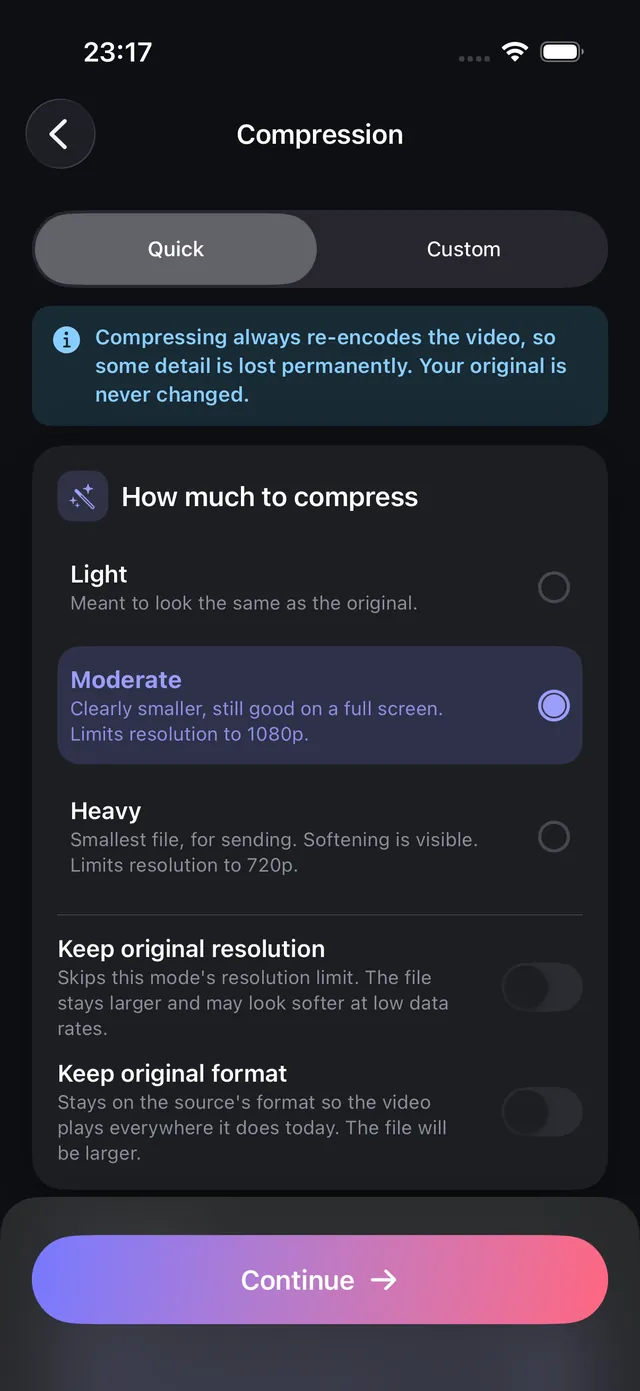
- Quality Mode — Choose the compression level and optionally downscale resolution (Original, Large 75%, Medium 50%, Small 25%). This mode preserves consistent visual fidelity across varying shots and is ideal for shrinking whole albums to free up iPhone storage.
- Target File Size Mode — Enter a precise ceiling in KB or MB (such as 500 KB or 1 MB). OptiPixel's iterative encoding algorithm determines the optimal compression curve for each photo so every exported image guarantees compliance under the limit.
Compress photos, step by step
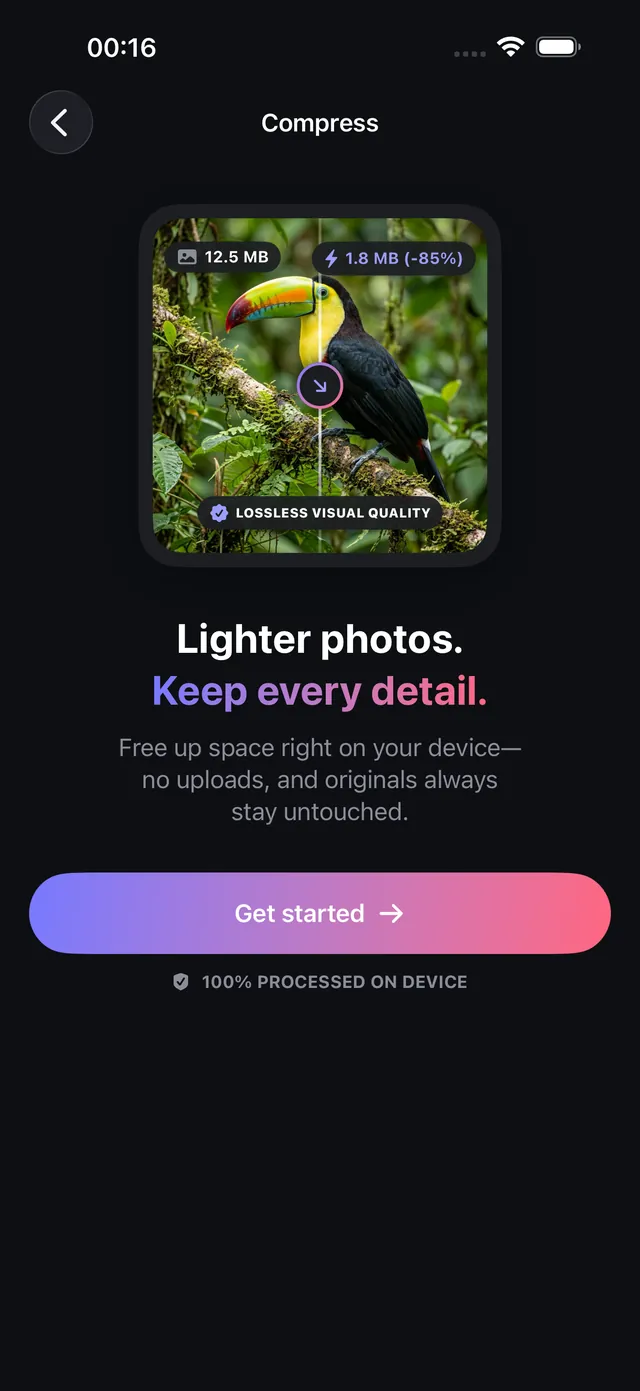
- Open OptiPixel, tap Compress in the Photos section, then tap Get started.
- Select photos from Photos or Files — select single shots or hundreds in batch.
- Choose Quality (preset ratio) or Target file size (exact KB/MB limit).
- Select the output format (e.g., JPEG for compatibility or HEIC for compact storage) and toggle whether to strip GPS location.
- Review the batch and send it to the Queue. OptiPixel encodes the photos in the background, creating new lightweight files while keeping your originals completely untouched.
Need exact pixel dimensions (width × height) rather than a file size cap? Use the Resize tool to adjust pixel dimensions directly.
Tips for best compression results
- For government & job portals: Use Target file size set to 950 KB with JPEG format, since many legacy portals reject HEIC photos.
- To shave off extra kilobytes: Strip EXIF camera metadata and location tags by switching off metadata, or use the specialized Metadata tool.
- For iPhone storage savings: Setting Quality to Medium 50% cuts file size by approximately two-thirds with no perceptible loss in sharpness on Retina screens.

OptiPixel — AI Transform & Watermark
Free · No account · Runs on your iPhone
Frequently asked questions
Does compressing reduce photo quality noticeably?
OptiPixel uses Apple's native image encoders to compress images intelligently, removing imperceptible high-frequency noise while preserving edge clarity. At moderate settings (50% to 75% Quality), visual differences are virtually undetectable on Retina screens and standard displays.
Are photos uploaded to external servers for compression?
No. OptiPixel performs 100% of its compression processing on-device using local Apple hardware acceleration. Your images never leave your iPhone or iPad, guaranteeing total privacy and offline functionality.
Can OptiPixel compress HEIC photos directly to JPEG?
Yes. OptiPixel supports HEIC, JPEG, and PNG formats. You can simultaneously compress HEIC images and convert them to widely compatible JPEGs in a single batch pass.
How many photos can be compressed in batch?
OptiPixel allows up to 3 photos per batch task for free, and users can unlock larger batches via a quick rewarded ad or unlimited background batching with OptiPixel Premium.
Will the compression overwrite original photos in the library?
No. OptiPixel follows strict non-destructive principles: every compressed output is generated as a separate new file in your Photos library or Files directory, leaving source photos untouched.