Video Compress
How to compress a video on iPhone without losing what matters
A minute of 4K video can take hundreds of megabytes. Shrink it on your iPhone — to email it, upload it or just get your storage back — with nothing uploaded.
Updated October 8, 2026 · Free on the App Store · iPhone & iPad, iOS 17+
Why iPhone videos consume massive storage
Default iPhone camera settings capture videos at elevated bitrates to ensure cinema-level playback on large 4K displays. However, a single minute of standard 4K 60fps video consumes roughly 450 MB of disk space. When sharing clips over messaging platforms or web upload forms, these large file sizes trigger strict upload failures:
- Discord: 25 MB file upload ceiling for standard accounts.
- Email Clients (Gmail, Outlook): 20 MB to 25 MB attachment caps.
- Messaging Apps (WhatsApp, Telegram, SMS): Aggressive cloud re-compression that degrades video clarity unless sent as raw files.
OptiPixel solves this problem by using Apple's on-device hardware video encoders (VideoToolbox) to re-encode and downscale iPhone videos locally, achieving up to 70–85% file size reduction without sending private footage to cloud servers.
iPhone video size & bitrate comparison table
The table below illustrates typical file sizes for one minute of iPhone footage and expected outputs using OptiPixel's compression profiles:
| Recording Resolution & Frame Rate | Default Bitrate | Uncompressed Size / Min | OptiPixel Compressed Size | Space Saved |
|---|---|---|---|---|
| 4K at 60 fps (Cinematic / Action) | ~60 Mbps | ~450 MB | ~110 MB – 140 MB | 70% – 75% |
| 4K at 30 fps (Standard 4K) | ~35 Mbps | ~260 MB | ~65 MB – 85 MB | 68% – 75% |
| 1080p at 60 fps (Smooth HD) | ~25 Mbps | ~185 MB | ~40 MB – 50 MB | 72% – 78% |
| 1080p at 30 fps (Standard HD) | ~15 Mbps | ~110 MB | ~22 MB – 25 MB (Discord ready) | 77% – 80% |
| 720p at 30 fps (Compact Web) | ~8 Mbps | ~60 MB | ~10 MB – 14 MB (Email ready) | 78% – 83% |
Compress video on iPhone, step by step
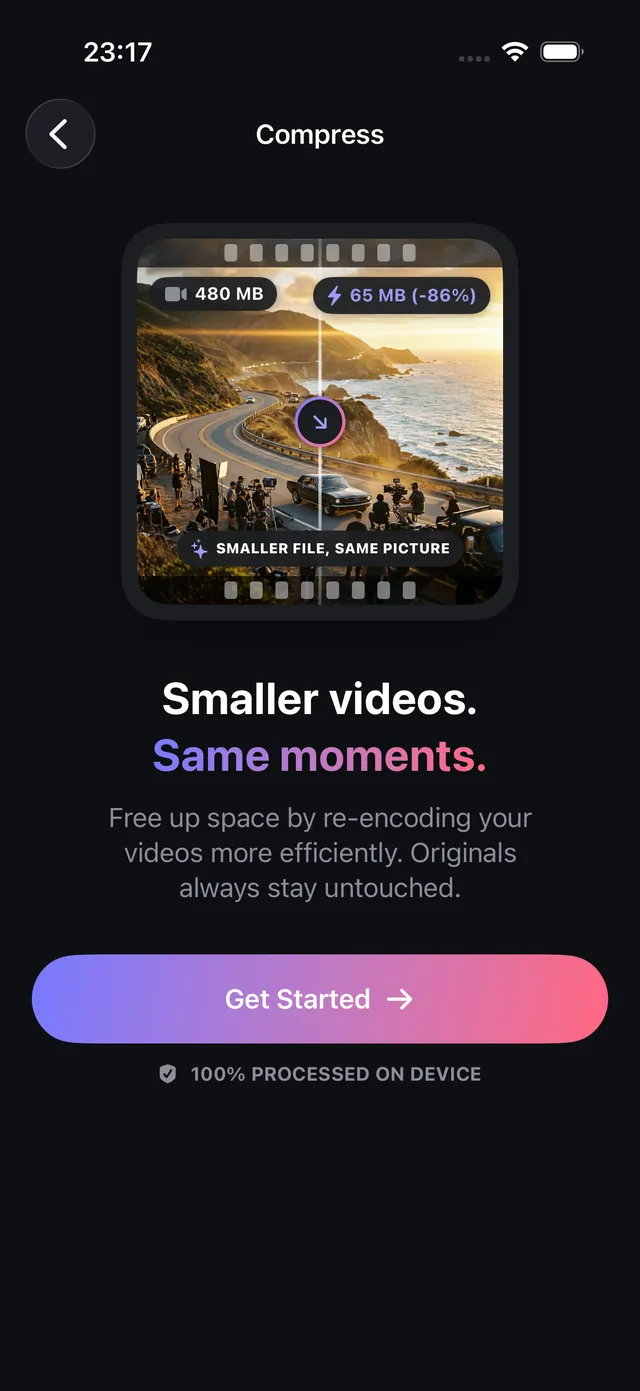
- Open OptiPixel and tap Video Compress in the Video section, then tap Get Started.
- Select one or more video clips from Photos, Files, or the Camera roll.
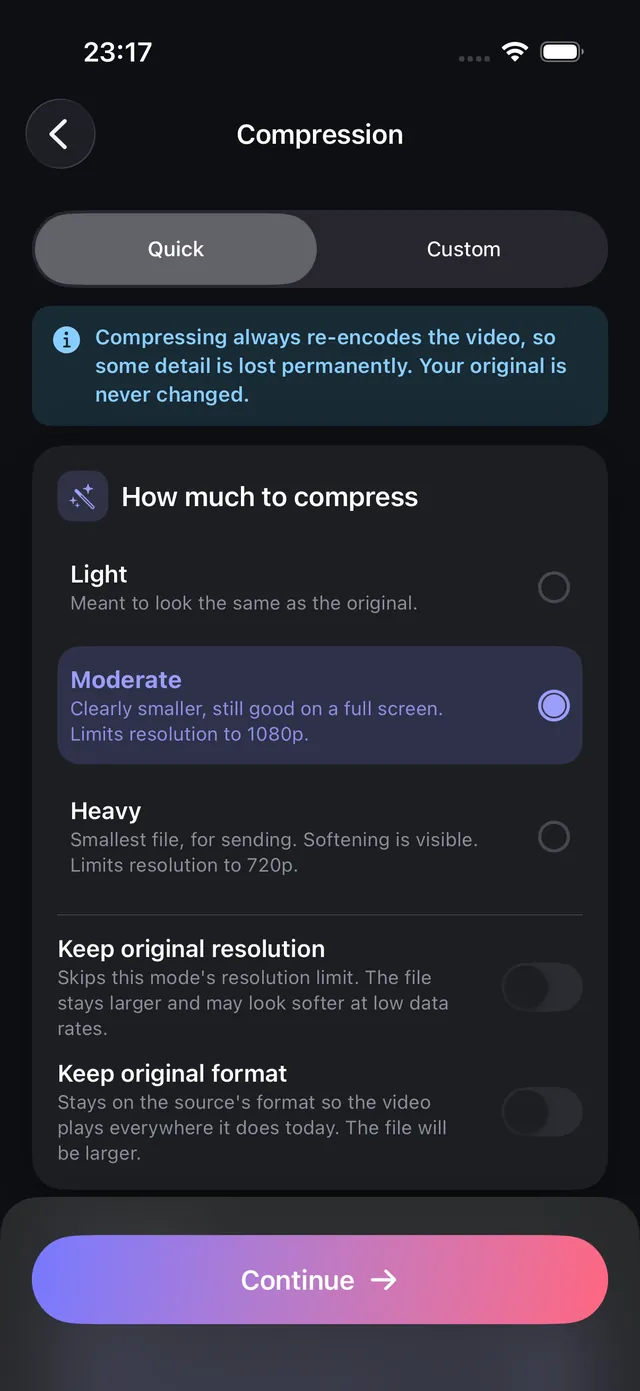
- Select a preset or customize parameters:
- Quick Presets: Choose Light (minimal change, pristine fidelity), Moderate (ideal 1080p balance for sharing), or Heavy (maximum compression for quick messaging).
- Custom Mode: Manually choose between HEVC (H.265) or H.264, configure custom target bitrates, and select whether to downscale resolution or preserve original frame dimensions.
- Review the estimated size reduction and add the task to the Queue.
- OptiPixel encodes the video in the background. The compressed copy is saved as a new file in your Photos library while keeping the source video intact.
Looking to reclaim gigabytes of storage across your entire video library? Use OptiPixel's Storage Cleanup tool to identify and rank your heaviest clips automatically.
How to choose between H.264 and HEVC codecs
- HEVC (H.265): Delivers superior compression efficiency—achieving the same visual quality at roughly 40–50% smaller file sizes than H.264. Recommended for Apple ecosystem playback, YouTube, and modern social platforms.
- H.264 (AVC): Offers universal backward compatibility. Choose H.264 when sharing videos to legacy Windows machines, older smart TVs, or custom corporate websites that lack native HEVC decoders.

OptiPixel — AI Transform & Watermark
Free · No account · Runs on your iPhone
Frequently asked questions
Does video compression happen locally or on a remote server?
OptiPixel executes all video compression on-device using Apple's integrated silicon hardware encoders. Your video footage is never uploaded to remote servers or third-party cloud services, ensuring absolute privacy and zero mobile data consumption.
Can I compress an iPhone video under 25MB for Discord or email?
Yes. By selecting OptiPixel's Moderate or Heavy preset, or by setting a custom bitrate and 1080p resolution in Custom Mode, videos up to 1–2 minutes can be compressed under 25 MB while preserving clear dialogue and visual detail.
Will compressing a video delete or modify the original recording?
No. OptiPixel strictly follows non-destructive file processing. Compressed videos are exported as brand-new assets, leaving your original high-resolution footage completely untouched in your Photos library.
Can 4K HDR and 60fps clips be compressed?
Yes. OptiPixel natively accepts 4K 60fps, HDR, and ProRes iPhone clips, allowing you to either preserve the native framerate with reduced bitrate or downscale to 1080p 30fps for maximum space savings.
How much storage can be freed by compressing iPhone videos?
Compressing large 4K family videos, vacation clips, or long screen recordings typically frees up 70% to 80% of occupied disk space. For example, a 2 GB video can easily be reduced to 450 MB with no discernible degradation when viewed on mobile screens.