Convert
How to convert HEIC to JPEG on iPhone — in bulk
Websites, forms and Windows PCs often reject iPhone's HEIC photos. Convert a whole batch to JPEG or PNG on your iPhone, in seconds.
Updated October 8, 2026 · Free on the App Store · iPhone & iPad, iOS 17+
Why iPhone photos are saved as HEIC and why they fail
Starting with iOS 11, Apple set HEIC (High Efficiency Image Container, based on the HEIF standard) as the default capture format for camera photos. HEIC uses modern compression algorithms derived from HEVC video coding, delivering equivalent image quality at roughly half the file size of traditional JPEGs.
While HEIC saves substantial storage on iOS and macOS devices, cross-platform compatibility remains fragmented:
- Windows PCs: Many Windows 10 and 11 installations cannot open
.heicfiles without manually purchasing the Microsoft HEIF Image Extension codec. - Web Forms & Portals: Government agencies, passport/visa offices, banking portals, and university admissions systems frequently reject
.heicand accept only.jpgor.png. - E-commerce & Marketplaces: eBay, Etsy, and localized classifieds often display upload errors when given HEIC files.
OptiPixel provides an offline, batch HEIC-to-JPEG conversion solution directly on iPhone and iPad, allowing you to convert hundreds of pictures simultaneously without cloud uploads.
HEIC vs JPEG vs PNG format comparison
The table below outlines the trade-offs in compatibility, compression, and feature support across image formats:
| Format Feature | HEIC (Apple Default) | JPEG (Standard) | PNG (Lossless) |
|---|---|---|---|
| Relative File Size | Smallest (~50% of JPEG) | Standard baseline | Largest (2x to 5x of JPEG) |
| Windows PC Compatibility | Requires HEIF codec plugin | Universal (native across all OS) | Universal |
| Web Upload Forms | Frequently rejected | 100% universal acceptance | Highly supported |
| Transparency Support | Yes (Alpha depth map) | No | Yes (Full 8/16-bit alpha) |
| Best Use Case | Long-term iPhone storage | Cross-platform sharing, forms | Graphic design, transparent logos |
Convert HEIC to JPEG, step by step
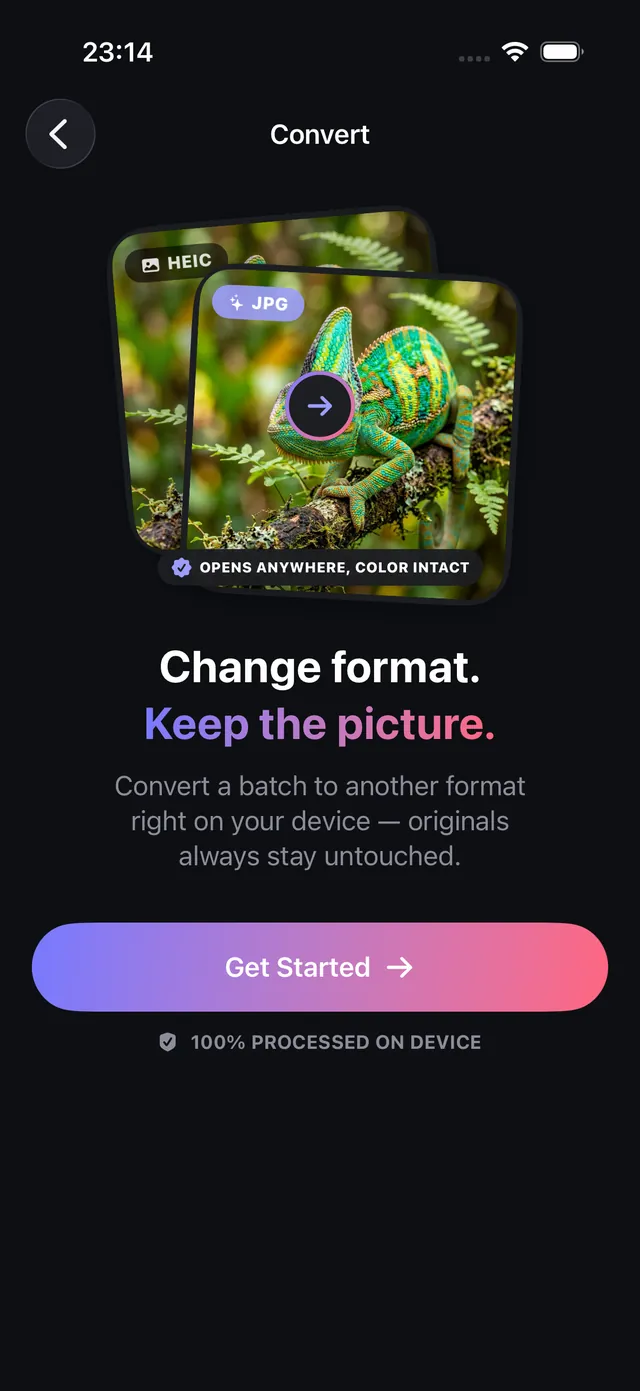
- Open OptiPixel and tap Convert in the Photos section, then tap Get Started.
- Select your HEIC photos from Photos or the Files app — you can select single images or entire albums.
- Choose JPEG as the output format for maximum universal compatibility, or PNG if you need lossless rendering.
- Review the conversion queue and tap Add to Queue.
- OptiPixel processes the conversion on your device in the background. Converted JPEGs are saved as new files in your library while your original HEIC photos remain intact.
Need to make the converted JPEGs even smaller to satisfy a strict upload quota? Use OptiPixel's Photo Compress tool to combine format conversion with target KB/MB limits in one step.
How to convert video and audio formats on iPhone
OptiPixel's conversion engine also handles video and audio files with native Apple hardware acceleration:
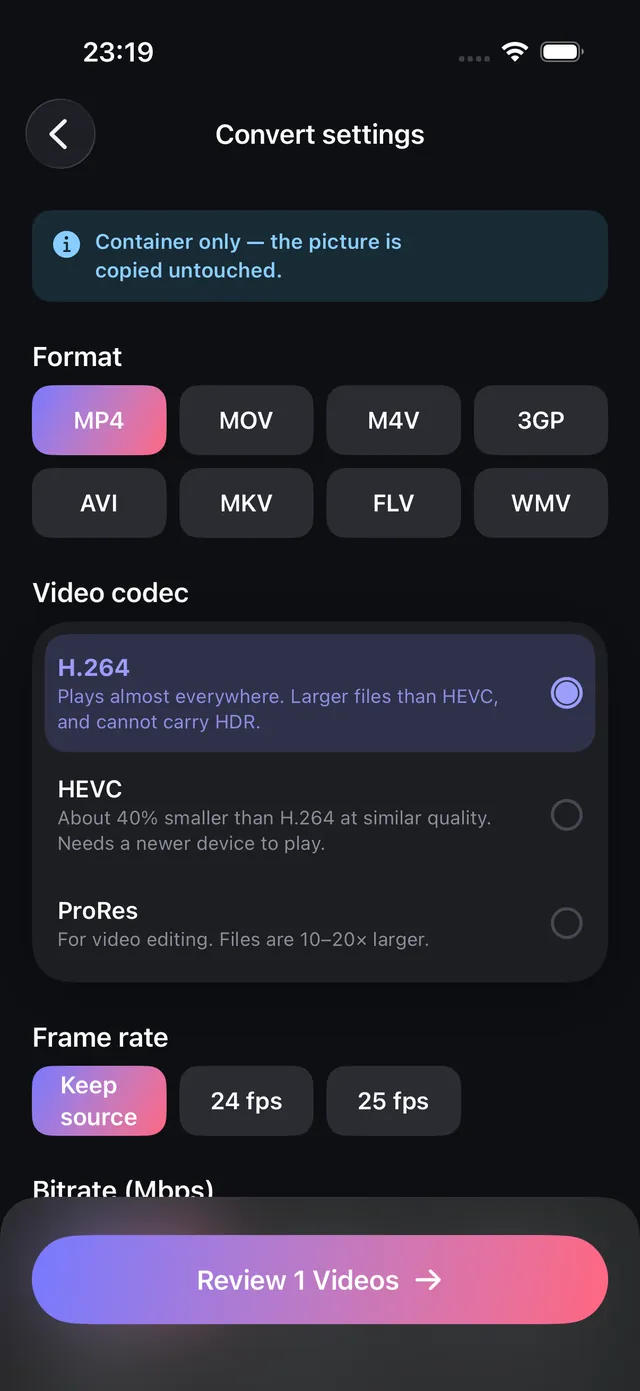
- Video Convert: Seamlessly re-wraps or re-encodes Apple QuickTime MOV files into universally playable MP4 containers, or switches between HEVC and H.264 codecs.
- Audio Convert: Converts voice memos and audio recordings between M4A (AAC), MP3, WAV, and FLAC without third-party converters.

OptiPixel — AI Transform & Watermark
Free · No account · Runs on your iPhone
Frequently asked questions
Does converting HEIC to JPEG reduce image resolution?
No. OptiPixel preserves the full pixel dimensions (such as 12 MP or 48 MP) and color profile of the original photo. Converting simply changes the image container and compression algorithm to standard JPEG without downscaling the resolution.
Will converting HEIC photos erase GPS and EXIF data?
By default, OptiPixel preserves standard EXIF metadata (camera settings, timestamps). If you want to sanitize your photos before sharing online, you can use the built-in toggle or the Metadata scrubbing tool to wipe GPS coordinates and device identifiers completely.
Does the conversion require an internet connection?
No. OptiPixel executes all format conversions locally on your iPhone using Apple's native ImageIO frameworks. No data is sent over the network, ensuring zero data usage and complete security for sensitive documents.
How do I stop my iPhone camera from shooting in HEIC?
To make your iPhone camera capture directly in JPEG, go to iOS Settings › Camera › Formats and select Most Compatible. Note that newly captured photos will occupy roughly twice the storage space of HEIC images.
Does OptiPixel delete the original HEIC photos after conversion?
No. OptiPixel never overwrites or deletes original images. Your original HEIC files stay completely safe in your Photos library, and converted JPEGs are created as distinct new assets.