Storage
How to free up iPhone storage by finding what takes the most space
"Storage Almost Full" usually comes down to a few huge videos and thousands of duplicates and screenshots. Find them in minutes — the scan runs on your iPhone.
Updated October 8, 2026 · Free on the App Store · iPhone & iPad, iOS 17+
Why the "iPhone Storage Almost Full" warning appears
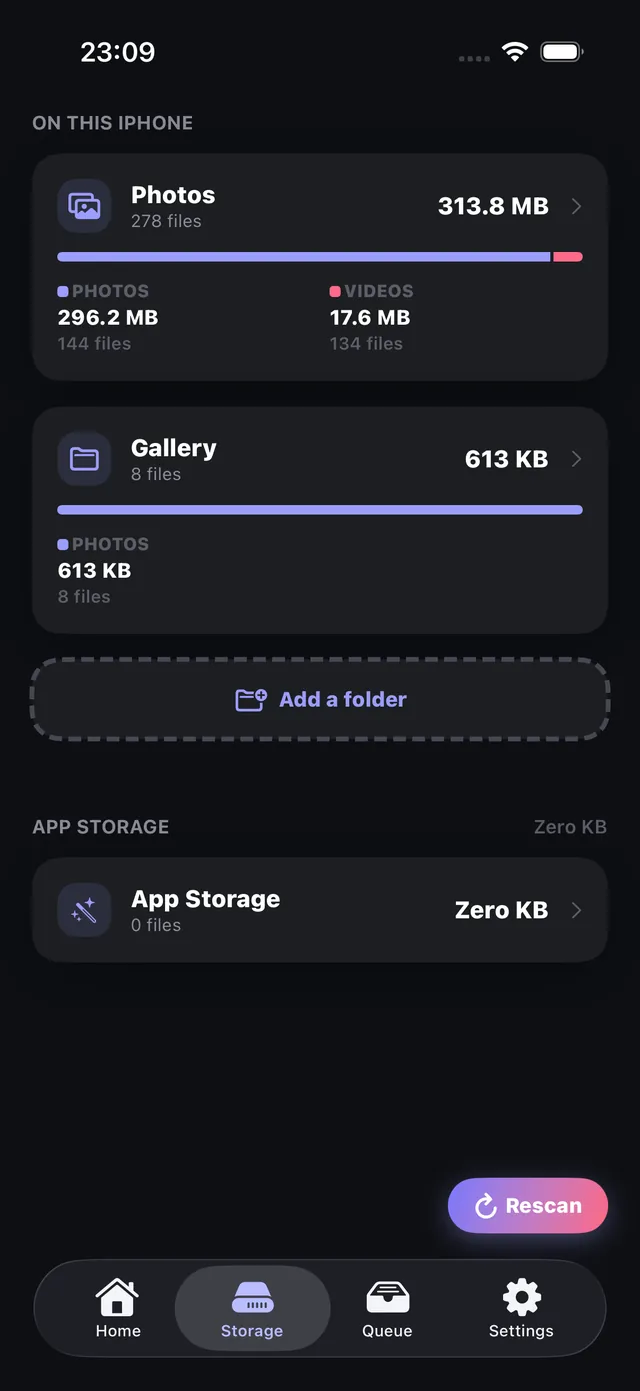
On modern iOS devices, the Photos and Videos library typically consumes between 40% and 70% of total internal storage. While standard iOS settings (Settings › General › iPhone Storage) display a general breakdown of storage by app, Apple does not provide a granular sorting of individual media items by file size.
In reality, storage consumption is heavily concentrated in a small fraction of files: - Heaviest 4K & High-Framerate Videos: A few 5-minute 4K clips often occupy 10 GB to 25 GB. - Byte-for-Byte Duplicates & Burst Retakes: Identical shots saved from WhatsApp or multiple photo attempts consume gigabytes of redundant space. - Temporary Screenshots & QR Code Captures: Scanned menus and one-off receipts that remain forgotten in your camera roll.
OptiPixel solves this by performing an on-device scan of your media library, categorizing files into actionable cleanup groups ranked by byte size.
Storage cleanup categories & reclaimable space
The table below outlines the five intelligent cleanup categories analyzed by OptiPixel and the typical storage space recoverable:
| Cleanup Category | Typical Recoverable Space | Detection Mechanism | Recommended Action |
|---|---|---|---|
| Heaviest 4K & 1080p Videos | 5 GB – 30+ GB | Ranked by file size in bytes | Compress via Video Compress or delete |
| Exact Duplicates | 1 GB – 5 GB | Byte-level file comparison | Purge identical redundant copies |
| Similar Shots (Burst / Poses) | 2 GB – 8 GB | On-device perceptual image matching | Keep best shot, delete duplicates |
| Screenshots | 500 MB – 3 GB | iOS screenshot metadata tags | Bulk delete outdated screen captures |
| QR Code Photos | 200 MB – 1 GB | On-device Vision barcode detection | Delete single-use menu/link photos |
How to find and clean heavy media in OptiPixel
- Open OptiPixel and navigate to the Storage tab.
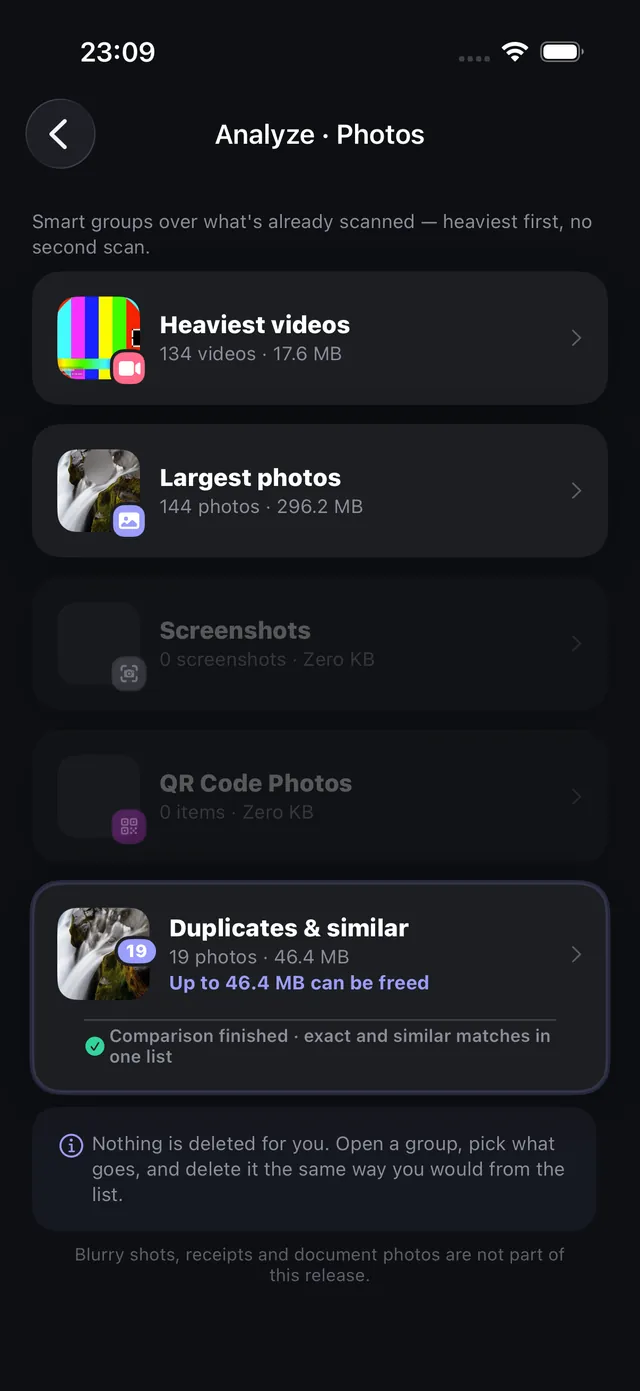
- Tap Analyze Photos to initiate the local library scan.
- Review the ranked groups:
- Heaviest videos: Shows video clips sorted strictly by megabytes or gigabytes. You can choose to delete clips or compress them directly without leaving the app.
- Largest photos: Displays ProRAW and high-resolution shots taking disproportionate space.
- Duplicates & similar: Identifies exact byte duplicates as well as similar sequential takes with suggested keep badges.
- Screenshots & QR Codes: Isolates ephemeral reference photos that can be safely purged.
- Select redundant items and confirm deletion. Files are moved to the iOS Recently Deleted album for safety.
Want to preserve the memories in your heaviest videos without surrendering storage? Use Video Compress to reduce 4K footage by 70% to 80% with near-identical visual clarity.
How OptiPixel compares exact vs similar duplicates
OptiPixel differentiates between two types of redundant media: - Exact Duplicates: Files that are 100% byte-for-byte identical (often created when importing from multiple chats, AirDrop, or backup restores). All but one can be deleted with zero risk. - Similar Shots: Consecutive photos taken seconds apart with slight framing differences. OptiPixel highlights these clusters side-by-side so you can keep the sharpest shot and discard the rest.

OptiPixel — AI Transform & Watermark
Free · No account · Runs on your iPhone
Frequently asked questions
Does OptiPixel delete any photos automatically without asking?
No. OptiPixel never deletes files autonomously. It groups and ranks items by size, allowing you to review selections and confirm every deletion through native iOS security dialogs.
Is my personal photo library uploaded to a cloud server during analysis?
No. All scanning, duplicate comparison, and barcode detection run 100% on-device utilizing local iOS hardware acceleration. No media or metadata is transmitted across the internet.
Why does iPhone storage not decrease immediately after deleting photos?
When photos or videos are deleted, iOS moves them to the Recently Deleted album for 30 days. To reclaim storage immediately, open the Apple Photos app, go to Albums › Recently Deleted, and tap Delete All.
Can I compress large photos instead of deleting them?
Yes. If you want to keep photos but reduce their footprint, select them and use the Photo Compress tool to downscale resolution or set a target file size in KB/MB.