Metadata
How to remove location and EXIF data from photos on iPhone
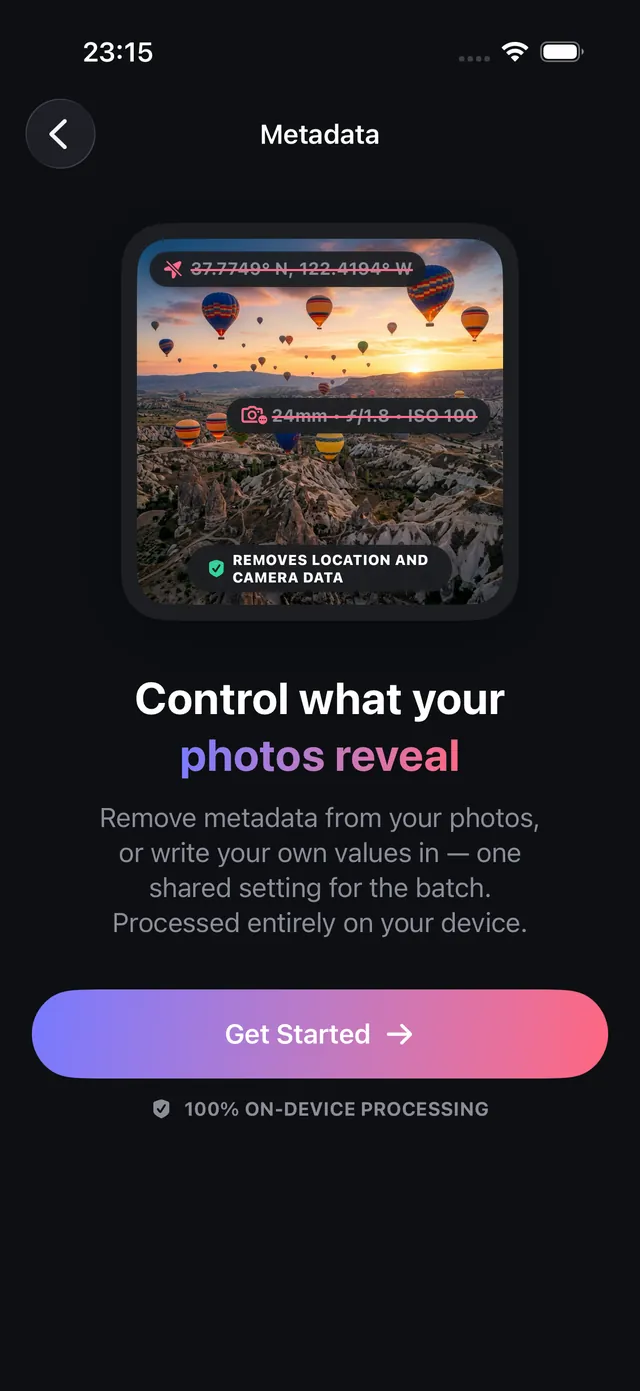
Every iPhone photo can carry your exact location, the time it was taken and your device model. Remove them before you post or send — in a batch, on your iPhone.
Updated October 8, 2026 · Free on the App Store · iPhone & iPad, iOS 17+
What hidden EXIF metadata iPhone photos contain
When you capture a photo or video on an iPhone, iOS automatically records a rich metadata payload inside the image file called EXIF (Exchangeable Image File Format) and TIFF metadata. This header is embedded directly into the file container alongside the visual pixels.
While EXIF metadata helps the iOS Photos app organize memories by location and date, it creates serious privacy vulnerabilities when sharing files:
- Unintended Location Leaks: AirDrop, email attachments, cloud links, and direct file uploads preserve raw EXIF headers. Anyone inspecting the image details can view your exact GPS coordinates on a map, revealing residential addresses, workplaces, or children's school locations.
- Doxxing & Stalking Risks: Posting raw photos to forums, community marketplaces, or decentralized networks exposes exact timestamps and location history.
OptiPixel provides an on-device metadata scrubbing tool that removes sensitive location tags, camera fingerprints, and timestamps in bulk without altering original image sharpness.
Sensitive metadata tags stripped by OptiPixel
The table below breaks down the primary metadata categories stored in iPhone photos and their associated security risks:
| Metadata Category | Common Embedded Tags | Security & Privacy Risk | OptiPixel Scrubbing |
|---|---|---|---|
| GPS Coordinates | Latitude, Longitude, Altitude, GPS Speed | Pinpoints exact geographic location within meters | Completely removed |
| Temporal Data | DateTimeOriginal, SubSecTime, OffsetTime | Reveals personal schedules and exact activity timing | Can wipe or spoof timestamp |
| Hardware Identifiers | LensModel, Camera Make, Device Model | Exposes physical device model and hardware serials | Completely removed |
| Capture Settings | ISO, ExposureTime, FNumber, WhiteBalance | Technical camera telemetry | Completely removed |
| Software & System | HostComputer, Software, UserComment | Discloses iOS operating version and software tools | Completely removed |
Remove metadata from photos and videos, step by step
- Open OptiPixel and tap Metadata in the Photos section (or Video Metadata for video files), then tap Get Started.
- Select photos or videos from Photos or the Files app — select a single file or a batch of hundreds.
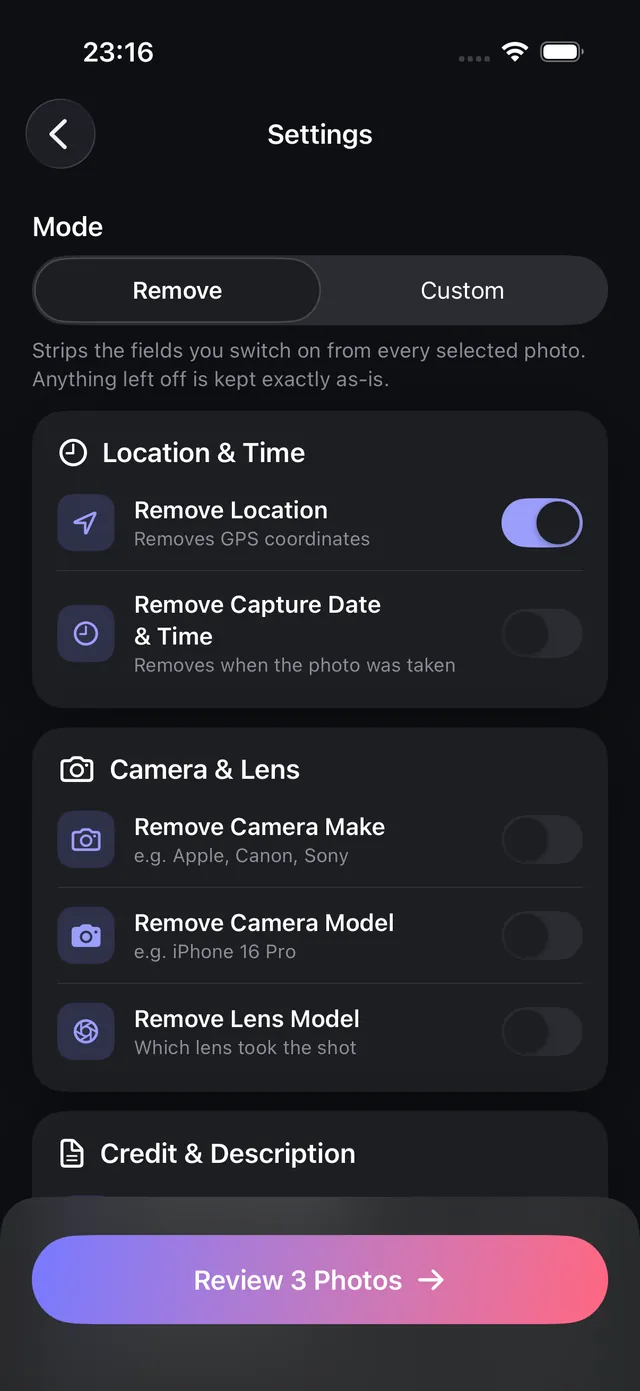
- In Remove mode, choose which categories to sanitize: Location (GPS), Capture Date & Time, and Camera & Lens Hardware Details.
- Tap Add to Queue to process the batch.
- OptiPixel rewrites the image headers in the background without re-compressing the visual pixels. Sanitized copies are saved as new files while your originals remain safely intact in your personal library.
Want to hide personal identities in group pictures as well as location? Pair metadata scrubbing with OptiPixel's Face Blur tool to detect and obscure faces automatically.
How OptiPixel compares to Apple's native Share Sheet toggle
Apple includes an "Options" toggle in the native iOS Share Sheet where users can disable location before sharing a single photo. However:
- Only works per-share: The native toggle does not create a permanent, sanitized file saved to your storage for future use.
- Leaves hardware & timestamp info: The native toggle only removes GPS; it still leaves camera serials, lens data, and exact timestamps intact.
- No batch queue or folder support: The native toggle cannot process whole photo albums or files stored in external directories.
- OptiPixel scrubs permanently: OptiPixel generates clean, metadata-free files ready for safe uploads across any platform.

OptiPixel — AI Transform & Watermark
Free · No account · Runs on your iPhone
Frequently asked questions
Does removing EXIF metadata reduce the image quality?
No. OptiPixel sanitizes the metadata header at the container level using Apple's ImageIO frameworks without re-encoding the compressed pixel data. The visual resolution, colors, and sharpness remain 100% identical to the source image.
Can I edit or spoof the date and location instead of deleting it?
Yes. In OptiPixel's Custom mode, you can adjust the capture timestamp or assign a different location. This is useful for correcting camera clocks or standardizing project archives.
Does metadata scrubbing work on iPhone videos?
Yes. OptiPixel features dedicated Video Metadata sanitization for MOV and MP4 files, stripping embedded GPS tracks and recording hardware tags.
Are my photos or videos uploaded to a server to clean metadata?
No. All EXIF scrubbing executes entirely on your device with local Apple APIs. No images or metadata ever leave your iPhone or iPad.
If I need a burned-in timestamp for work, what should I use?
If you require verifiable proof for construction sites, deliveries, or inspection records, use OptiPixel's Time Marker tool to burn the timestamp and address directly into the image pixels so it cannot be stripped.