AI Transform
How to turn a photo into a painting or sketch on iPhone
Watercolor, impressionist oil, ukiyo-e print or a pencil sketch — turn your photos into art with AI that runs right on your iPhone.
Updated October 8, 2026 · Free on the App Store · iPhone & iPad, iOS 17+
Why neural brushwork outperforms standard photo filters
Traditional photo editing apps use flat Color Lookup Tables (LUTs) or simple color matrix filters. These basic filters change hues but cannot recreate physical brush textures, organic stroke directionality, or paper grain.
OptiPixel utilizes feed-forward deep neural networks executed directly on Apple silicon (Apple Neural Engine and Metal). Each artistic model interprets image contours and depth planes dynamically, applying brushwork and pigment dispersion that follows the physical geometry of your photo—all without uploading your sensitive photos to remote cloud servers.
Artistic painting styles & medium characteristics
The table below describes the classical painting and sketching styles available in OptiPixel's Artistic collection:
| Artistic Style Preset | Classical Medium Emulated | Brushwork & Texture Dynamics | Recommended Photo Subject |
|---|---|---|---|
| Watercolor | Transparent watercolor on cold-press paper | Pigment granulation, wet-on-wet edge blooms | Coastal waters, flowers, pets, misty mornings |
| Monet (Impressionism) | French Impressionist oil on canvas | Broken color dabs, light vibration and dappling | Gardens, reflective lakes, city architecture |
| Van Gogh Oil | Expressive Post-Impressionist impasto | Swirling, directional thick-paint impasto strokes | Dramatic skies, golden-hour fields, expressive faces |
| Cézanne | Structured Post-Impressionist oil | Faceted plane construction, architectural brush blocks | Mountain ridges, still life, structured buildings |
| Ukiyo-e | Edo-period Japanese woodblock print | Strong black outlines, flat mineral color gradients | Waves, bridges, scenic vistas, dramatic portraits |
| Pencil & Charcoal Sketch | Graphite pencil and willow charcoal | Hand-drawn cross-hatching, grain texture | Dramatic black-and-white portraits, historic architecture |
Turn a photo into fine art, step by step
- Open OptiPixel and tap AI Transform on the Home screen, then tap Get Started.
- Select your photo or a multi-photo batch from Photos, the Files app, or capture directly with the Camera.
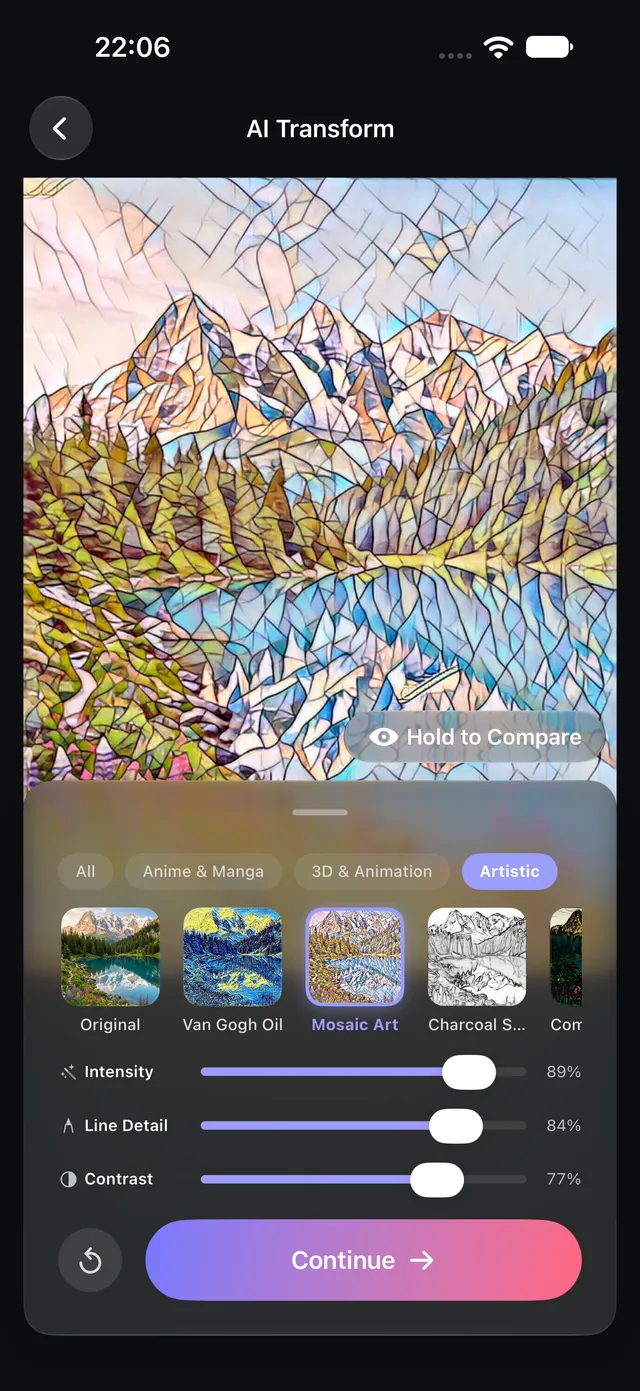
- Tap Artistic above the style carousel and choose a style (e.g., Watercolor, Monet, or Van Gogh Oil).
- Refine the canvas look:
- Use the Compare eye button or hold the preview to inspect against the original photograph.
- Adjust the Intensity slider (typically 70%–85% provides the ideal balance between photographic recognition and painterly texture).
- Adjust Contrast and Line Detail to emphasize brushstroke depth and paper texture.
- Tap Continue and send the task to the Queue. OptiPixel renders full-resolution painted assets in the background, keeping your original photos completely untouched.
Want modern pop art, anime, or 3D cartoon aesthetics instead of classical painting? Explore OptiPixel's Anime & Cartoon styles.

OptiPixel — AI Transform & Watermark
Free · No account · Runs on your iPhone
Frequently asked questions
Does OptiPixel upload private photos to remote servers?
No. All artistic neural models execute 100% on-device using Apple's Neural Engine and Metal GPU. Your personal photos and portraits are never transmitted over the internet or stored on external servers.
Can I print the generated painting on canvas or poster paper?
Yes. OptiPixel exports full-resolution images matching the native resolution of your original photo, making them fully suitable for high-DPI canvas prints, wall art, and custom gifts.
Why do certain styles prompt a one-time download?
While core styles are bundled directly in the app, select heavy models (such as Monet, Cézanne, and Impasto) feature dedicated high-parameter weights (21–96 MB). These download once onto your device, after which they run completely offline. You can delete them at any time in Settings › App Storage › AI Models.
Can I apply one painting style to an entire travel album in batch?
Yes. OptiPixel’s asynchronous Queue allows you to select dozens of trip photos and apply a unified painterly look across the entire album in the background.
Are source photos modified during stylization?
No. OptiPixel adheres to strict non-destructive editing standards: every painted output is saved as an independent new asset, leaving source photos untouched in your library.