Resize
How to resize a photo on iPhone to the exact size you need
Need a 1080 × 1080 image, a 2000-pixel listing photo or a quarter-size copy? Resize one photo or a whole batch on your iPhone.
Updated October 8, 2026 · Free on the App Store · iPhone & iPad, iOS 17+
The difference between resizing pixels and compressing file size
It is common to confuse resizing with compressing, but they address distinct technical requirements: - Resizing (Pixel Dimensions): Changes the actual resolution—the physical grid of pixels (width × height). Online marketplaces (such as Shopify, Amazon, and Etsy) and social media platforms mandate strict pixel requirements like 1080 × 1080 px or 2048 px on the long edge. - Compressing (Byte Size): Re-encodes the image into fewer bytes (KB or MB) without necessarily reducing pixel dimensions. To hit target file size caps under 1 MB, use Photo Compress.
OptiPixel includes dedicated tooling for both workflows, allowing you to downscale image dimensions in batch using high-quality on-device Apple CoreImage bicubic resampling.
Standard pixel dimensions for web, e-commerce & social media
The table below details standard industry dimension standards supported by OptiPixel's custom resizing presets:
| Platform & Destination | Recommended Resolution (W × H) | Aspect Ratio | Primary Requirement |
|---|---|---|---|
| Instagram Square Feed | 1080 × 1080 px | 1:1 | Standard feed photography |
| Instagram Portrait Feed | 1080 × 1350 px | 4:5 | Maximum vertical mobile screen real estate |
| Instagram Stories & Reels Cover | 1080 × 1920 px | 9:16 | Full-screen vertical display |
| E-Commerce (Amazon, Shopify, eBay) | 2000 × 2000 px to 2048 × 2048 px | 1:1 | High-resolution product zoom |
| Professional Avatars (LinkedIn, X) | 400 × 400 px | 1:1 | High-DPI profile icon display |
| Web Blog & Email Banners | 1200 × 630 px or 1920 × 1080 px | 1.91:1 / 16:9 | Fast page loading with clear headers |
Resize photos on iPhone, step by step
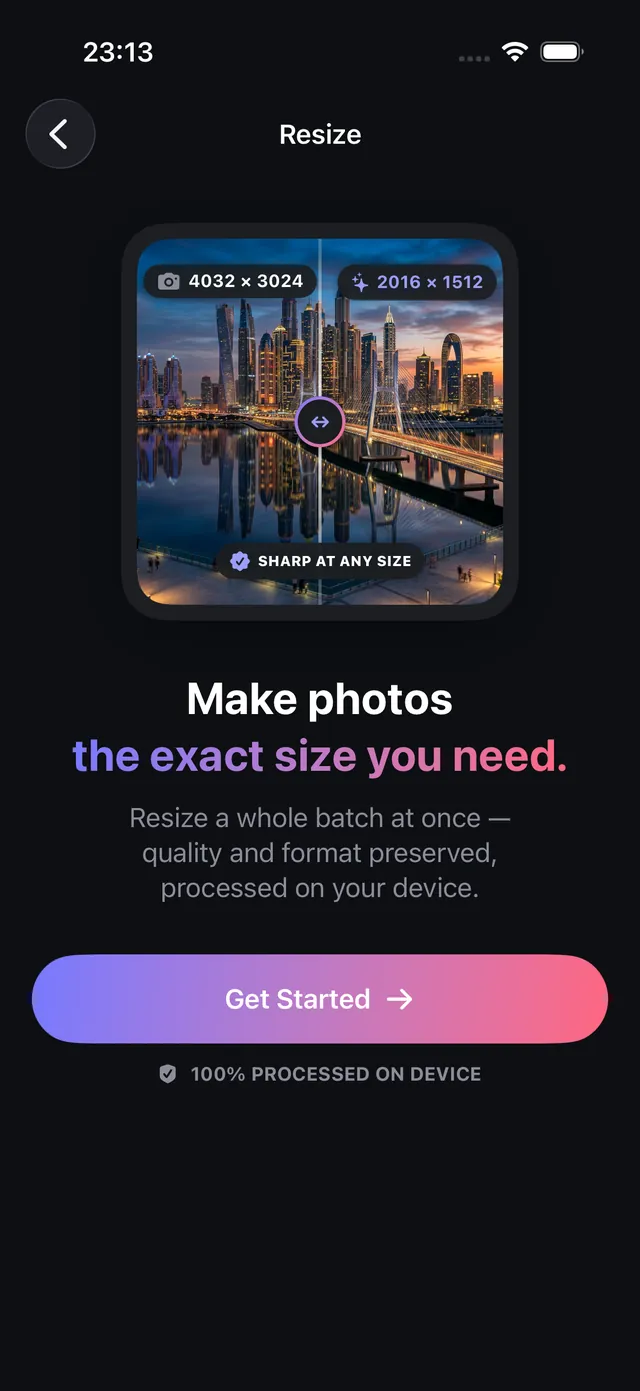
- Open OptiPixel and tap Resize in the Photos section, then tap Get Started.
- Select your photos from Photos or the Files app — you can process single photos or large batches.
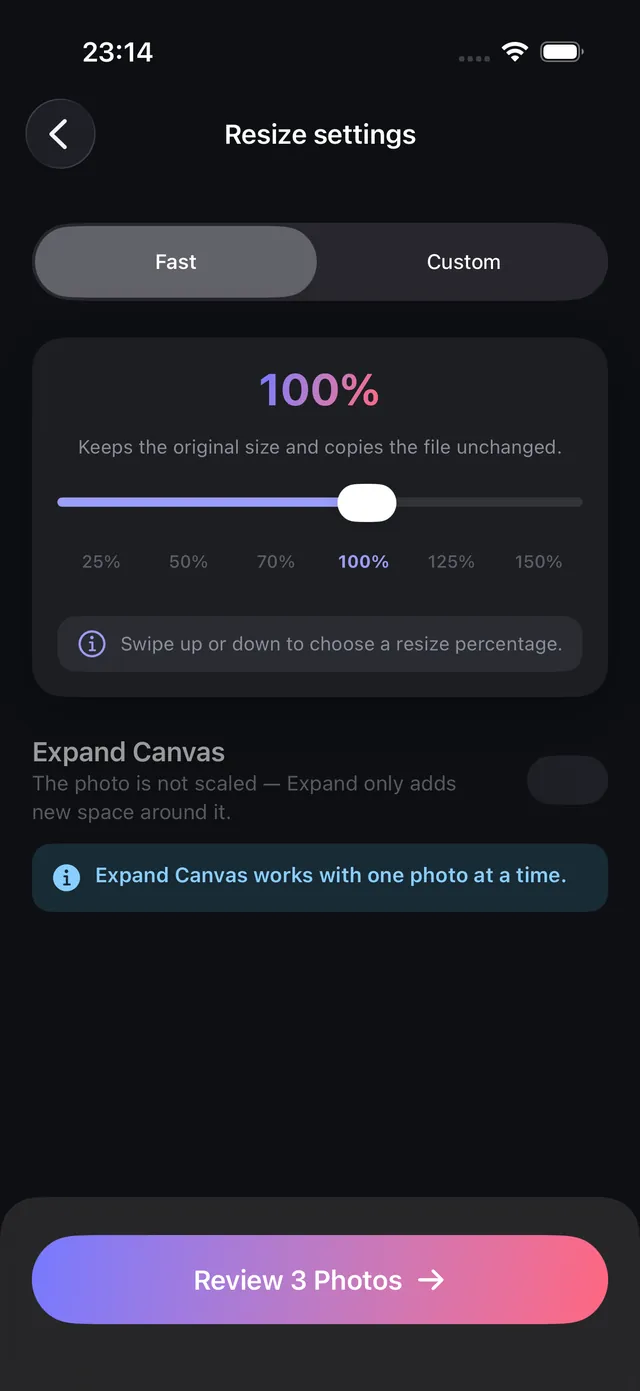
- Choose your scaling mode:
- Fast (Percentage): Use the slider to scale proportionally to 75%, 50%, or 25% of original dimensions.
- Custom (Exact Pixels): Type exact target values for Width and Height. OptiPixel maintains proportional aspect ratios automatically to prevent distortion unless unlocked.
- Review the calculated dimensions in the Review list and tap Add to Queue.
- OptiPixel resamples the photos on your device in the background. The resized copies are saved as new assets while your original high-resolution captures remain untouched.
Need to brand your resized product pictures before listing them online? Add your text or logo in bulk using OptiPixel's Watermark tool.

OptiPixel — AI Transform & Watermark
Free · No account · Runs on your iPhone
Frequently asked questions
Does resizing down reduce the visual sharpness of a photo?
No. Downscaling a high-resolution 12 MP or 48 MP photo to 1080 px or 2048 px actually increases perceived pixel density, resulting in sharp, crisp graphics without blurriness. Upscaling beyond original dimensions, however, cannot fabricate extra optical detail.
Can OptiPixel batch resize hundreds of photos at once?
Yes. OptiPixel applies identical dimension constraints across large photo selections, isolating each task in the background Queue. Free users can process up to 3 photos per task, with unlimited batch sizes unlocked by OptiPixel Premium.
Does OptiPixel support video resizing?
Yes. Under the Video tab, the dedicated Video Resize utility downscales video resolution (e.g., from 4K to 1080p or 720p) locally on iPhone.
Are original photos overwritten when resizing?
No. OptiPixel enforces strict non-destructive editing rules: resized images are always exported as new files, leaving the original images unaltered in your photo library.
Is any data sent to cloud servers during resizing?
No. All resampling calculations execute directly on your iPhone using Apple hardware-accelerated graphics pipelines, ensuring zero latency, zero cloud uploads, and offline support.