Face Blur
How to blur faces in photos on iPhone, automatically
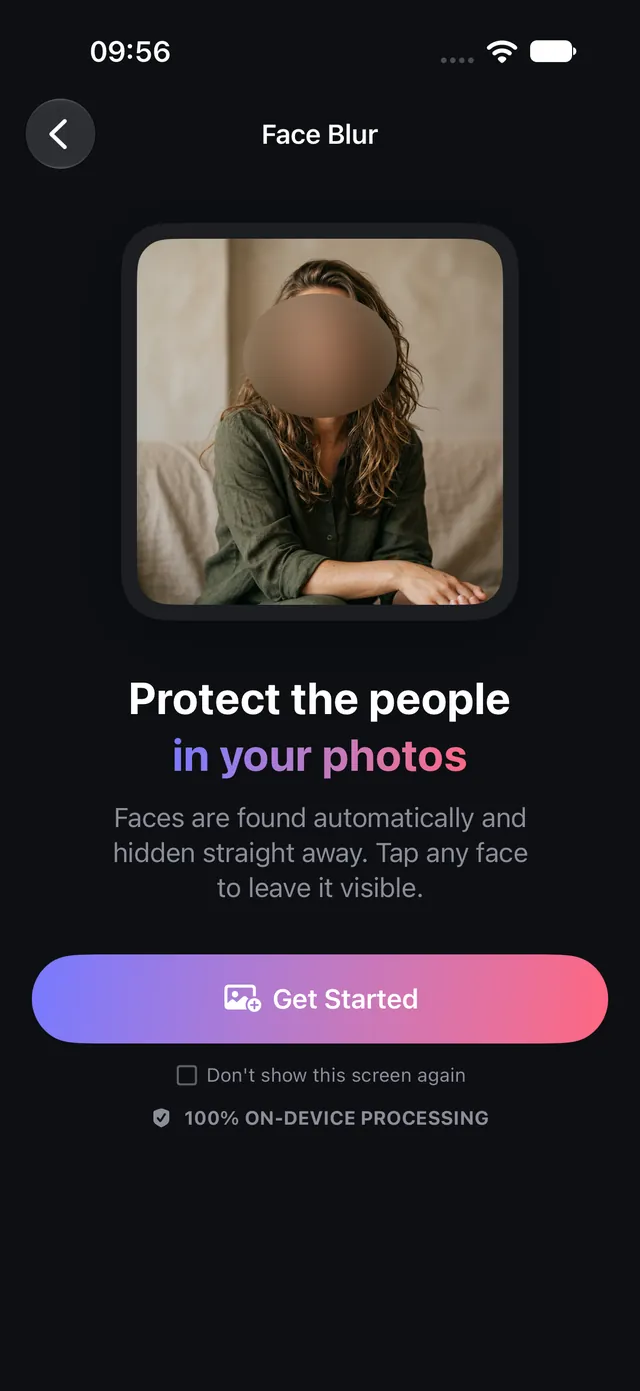
Protect the people in your photos — strangers in the background, children, customers — by blurring their faces before you share. Faces are found for you, on your iPhone.
Updated October 8, 2026 · Free on the App Store · iPhone & iPad, iOS 17+
Why anonymizing faces protects privacy and legal rights
Posting street photography, school events, or workplace media online often exposes innocent bystanders, minors, and customers to unwanted facial recognition scraping. Data privacy laws (such as GDPR, CCPA, and child online protection guidelines) increasingly demand that non-consenting individuals in public photography be anonymized prior to public distribution.
Manual editing tools require painstakingly drawing stickers or mosaic boxes over every face one by one. OptiPixel features an automated, on-device Face Blur engine powered by Apple Vision frameworks that detects and obscures all human faces in a single tap—completely offline without cloud biometrics.
Face anonymization scenarios & privacy standards
The table below outlines common privacy scenarios and recommended anonymization practices supported by OptiPixel:
| Photography Scenario | Subjects to Anonymize | Compliance & Ethical Standard | OptiPixel Workflow |
|---|---|---|---|
| School & Youth Sports | Minors, students, spectators | Child identity privacy protection (COPPA/GDPR) | Automated batch face detection and obscuration |
| Street & Travel Photography | Background pedestrians, bystanders | Public space privacy rights & street ethics | All faces auto-blurred; tap to unblur creator |
| Commercial & Healthcare Media | Patients, clients, unconsenting staff | HIPAA & professional confidentiality | Permanent face obscuration across portfolio |
| Incident & Insurance Reports | Unrelated witnesses, bystanders | Witness identity protection | Permanent non-reversible blurring |
Blur faces in photos on iPhone, step by step
- Open OptiPixel and tap Face Blur in the Photos section, then tap Get Started.
- Select one or more photos from Photos or the Files app.
- OptiPixel automatically scans the image and highlights all detected face landmarks.
- Customize face visibility:
- All faces are blurred by default for safety.
- Simply tap any face to toggle it clear (e.g., leaving yourself clear while keeping bystanders obscured).
- Tap again to re-blur.
- Add the task to the Queue.
- OptiPixel renders the blurred effect permanently into the output file at full resolution, exporting a brand-new asset while keeping your original unedited photo safe.
Want to remove hidden GPS coordinates along with facial identities? Pair face blurring with OptiPixel's Metadata Scrubbing tool to wipe location tags completely.

OptiPixel — AI Transform & Watermark
Free · No account · Runs on your iPhone
Frequently asked questions
Does OptiPixel store facial biometric templates or identify who people are?
No. OptiPixel uses local geometric face bounding box detection via Apple Vision. It does not perform facial recognition, does not identity names or demographics, and never stores or uploads biometric data.
Is the blur effect reversible by third parties?
No. OptiPixel irreversibly rasterizes the blurred pixels into the exported image file. Once saved, original facial features cannot be recovered or reversed using filters or editing software.
Does Face Blur upload photos to external servers?
No. All neural face detection and pixel scrambling execute 100% on-device utilizing local Apple silicon, ensuring complete privacy even when operating in Airplane Mode.
Can I batch blur faces across multiple photos?
Yes. OptiPixel allows you to select photo batches and apply consistent automated face obscuration across albums in the background Queue.
Are original unblurred photos preserved?
Yes. Following OptiPixel's non-destructive editing architecture, all blurred outputs are exported as separate new assets, keeping your master original photos untouched in your library.