Time Marker
How to add a date and time stamp to photos and videos on iPhone
Put the date, time and place right on the picture, so a site photo, delivery or handover carries its own proof wherever it's sent.
Updated October 8, 2026 · Free on the App Store · iPhone & iPad, iOS 17+
Why field teams and professionals burn timestamps into photos
While modern smartphones record capture time in hidden EXIF headers, this metadata is stripped automatically whenever photos are transmitted via messaging apps (such as WhatsApp, Telegram, or SMS), uploaded to web forms, or screenshotted. Once detached from the image file, proving when and where a picture was taken becomes legally and operationally challenging.
A burned-in timestamp renders verifiable text directly onto the visual pixels of the image canvas. Contractors, site supervisors, courier drivers, property inspectors, and insurance adjusters rely on burned-in stamps as unalterable evidentiary documentation that travels permanently with the image.
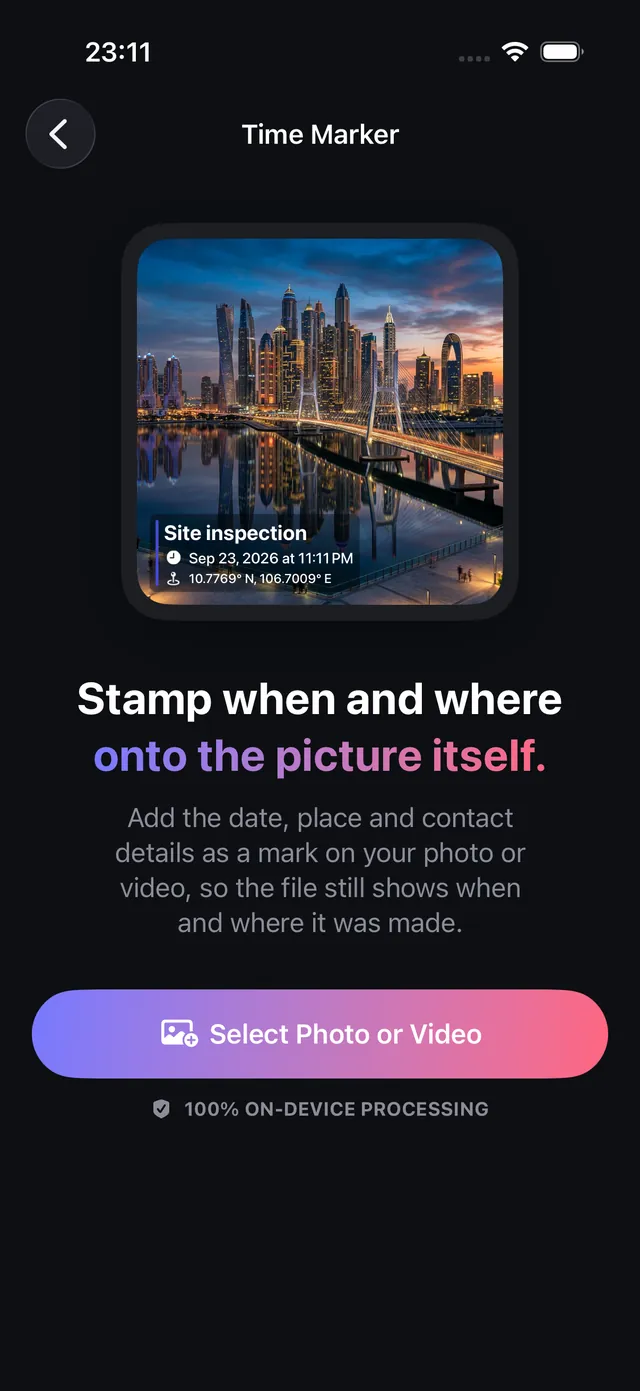
OptiPixel features a dedicated Time Marker utility engineered to burn dates, times, reverse-geocoded addresses, and custom project notes directly into photos and video clips on iOS.
Evidentiary use cases across professional industries
The table below outlines standard timestamping requirements across commercial and professional workflows supported by OptiPixel:
| Professional Industry | Active Stamped Fields | Recommended Corner | Evidentiary Purpose |
|---|---|---|---|
| Construction & Contracting | Project Title, Date, Time, Physical Address | Bottom-Left / Bottom-Right | Verifies daily site milestones & subcontractor handovers |
| Courier & Logistics Delivery | Tracking ID, Exact Timestamp, Delivery Address | Bottom-Left | Undeniable proof of doorstep delivery for dispute resolution |
| Real Estate & Rental Property | Room Name, Date, Timestamp, Condition Notes | Bottom-Right | Move-in/move-out condition records for security deposits |
| Insurance Adjusting | Claim ID, Exact Timestamp, Incident Address | Bottom-Left | Fraud-resistant documentation of vehicular or property damage |
| Field Audits & Utility Inspections | Asset Serial, Date/Time, Contact Details | Bottom-Right | Regulatory compliance audit trails for infrastructure |
Add a timestamp to photos and videos, step by step
- Open OptiPixel and tap Time Marker in the Photos or Video section, then tap Select Photo or Video.
- Select your image or video from Photos, the Files app, or capture directly with the Camera.
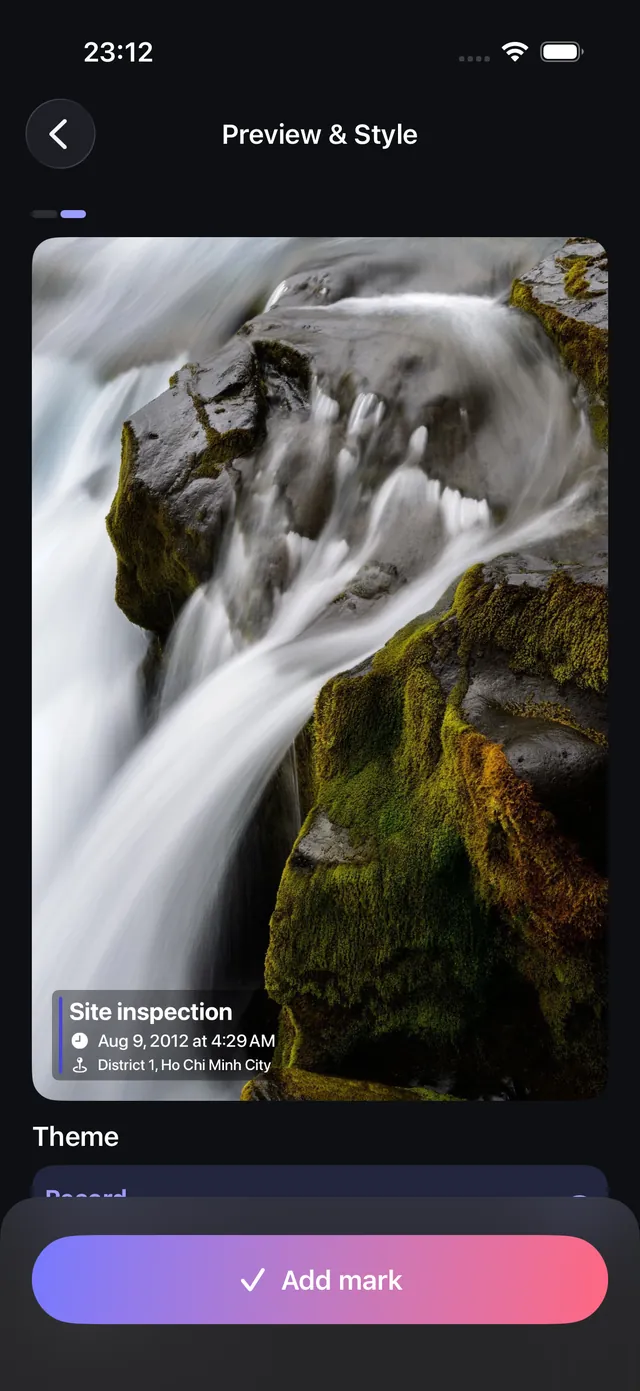
- Configure your verified fields:
- Title: Project name, client reference, or inspection ticket number.
- Date & Time: Automatically reads original capture EXIF timestamp, with manual override available.
- Address: Fill in street address automatically or type a custom site identifier.
- Phone & Note: Optional contact number and technician notes.
- Select position: Tap any of the 4 canvas corners on the live preview to dock the text block.
- Tap Add mark to process the task through the Queue.
- OptiPixel embeds the typography directly into the pixels at full resolution, exporting a new file while keeping the original capture untouched.
Need creative branding with logos and handles instead of factual inspection stamps? Use OptiPixel's Watermark tool for graphic brand signatures.

OptiPixel — AI Transform & Watermark
Free · No account · Runs on your iPhone
Frequently asked questions
Does Time Marker leave blank gaps for unused fields?
No. OptiPixel uses a dynamic layout engine: any field left empty is completely omitted from the rendered text block, ensuring a clean, compact footprint with zero placeholder gaps.
Can Time Marker stamp videos as well as photos?
Yes. OptiPixel applies burned-in timestamps across both static images and video clips (including 4K and 1080p footage) with synchronized timeline placement.
Is the timestamp burned into the pixels or stored as metadata?
The timestamp is permanently rasterized into the actual image pixels. It cannot be stripped or altered by metadata scrubbing tools or social media compression engines.
Does OptiPixel upload my location or inspection data to servers?
No. All reverse-geocoding resolution and pixel compositing execute 100% on-device. No location coordinates, project notes, or images are ever transmitted to external servers.
Are original unmarked captures preserved?
Yes. Following OptiPixel's non-destructive architecture, all stamped outputs are saved as brand-new files, leaving master captures untouched in your library.